Advertising
The advertising system shows your own banners and ad network codes on the site. You add an ad once and the system rotates it in the chosen position, counts impressions and clicks, and watches the campaign dates and the impression limit. Every ad on the site is marked with the word “Advertisement”.
Turning it on
Open Administration → Extensions, tick Advertising system and save. Readers → Advertising is added to the menu; an administrator and an editor have access.
Positions
| Position | Recommended shape | How it gets onto the site |
|---|---|---|
| In the sidebar (Column in the block) | square, e.g. 300×250 | through the Advertising block |
| In the header (Header in the block) | wide strip, e.g. 970×210 | through the Advertising block |
| In the footer (Footer in the block) | wide strip | through the Advertising block |
| Below the article | – | shown automatically below every article |
You place the column, header and footer positions on the site like this:
- Open Appearance → Blocks and layout.
- In the zone where the ad is to be, click + Add block and choose Advertising in the Custom group.
- In the block settings select the Ad position and save.
The name of a position is only a guide. You can put a block with the Column position into any zone, and you can have the same block on the site several times. A block in whose position no ad is running at the moment is not output for readers. You can restrict the block to a section, a device or a language like any other – see Blocks and layout.
New ad
- In Readers → Advertising click New ad.
- Fill in the Name – it is only for you and is not shown on the site. For a banner it also serves as its alternative text.
- In the What to show section choose the Banner or Ad network code tab, and fill in the fields according to the table below.
- In the Where section choose the position tab: In the sidebar, Below the article, In the header or In the footer.
- Expand Scheduling, targeting and limits as needed.
- Click Save. The ad is on once saved; you can turn it off with the option ad is enabled (the Status row) in the expanded Scheduling, targeting and limits section.
| Type | What you fill in | What is counted |
|---|---|---|
| Banner | Image (from Media) and Where the banner leads – an address starting with https:// | impressions and clicks |
| Ad network code | the Code the network gave you (Sklik, Google AdSense and the like) | impressions only; clicks are measured by the network |
A banner opens in a new window and the link carries the sponsored mark. A click goes through the site address /r/number, which counts it and redirects to the target. Visits by robots are not counted as clicks.
With the cookie banner turned on, an ad network code runs only after the visitor consents to marketing. With the banner turned off it runs straight away. See Analytics and privacy.
Scheduling, targeting and limits
| Field | Meaning |
|---|---|
| Show from, Show until | A time-limited campaign. An empty field means no restriction. The ad starts and stops by itself. |
| Max impressions | After the number is reached, the ad turns itself off. Empty = no limit. |
| Only in section | The ad is shown only in the listing of this section and with its articles. The default is in all. |
| Devices | all, phones only, or computers and tablets only. The boundary is a window width of 760 px. |
| Weight | 1–10. When there are several ads in a position: weight 2 = shown twice as often as weight 1. |
When several ads are running in one position, one is drawn according to the weights on every page view. Targeting a section applies exactly to the chosen section; its subsections are not included.
Targeting by device is handled by the page stylesheet: the ad is inserted into the page and hidden on an unsuitable device. The impression is counted even where the ad is not visible. For an ad targeted by device the number of impressions is therefore higher than the number of people who actually saw it; clicks are exact.
Overview and report
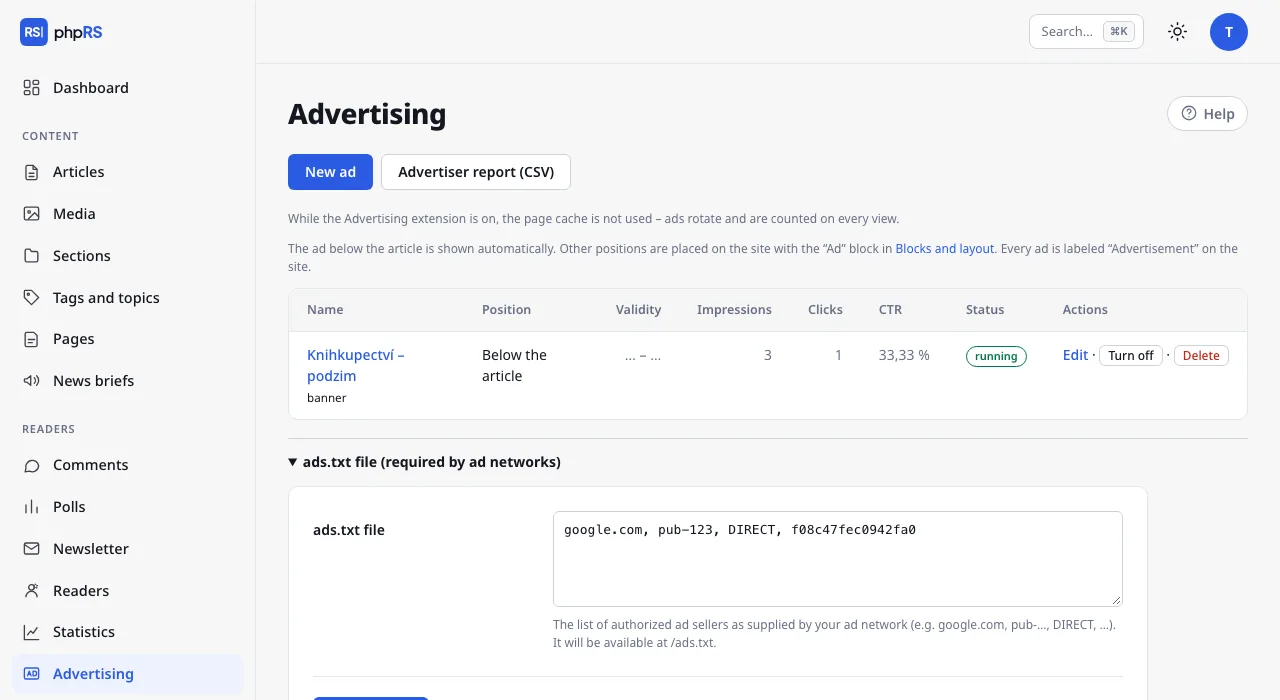
For every ad the overview shows the position, the validity, Impressions (with the limit, if one is set), Clicks, CTR and the status. An ad that is turned on, is within its dates and has not used up its limit has the status running; otherwise not running. With the Turn off and Turn on buttons you pause an ad without losing the counts. Delete removes the ad together with its counts.
Advertiser report (CSV) downloads a file with all ads: name, position, from, until, impressions, clicks, click-through rate in per cent and status. Open it in a spreadsheet program.
The numbers are aggregate. The system does not record who saw an ad and stores no cookies because of it. In an article preview from the administration ads are neither shown nor counted.
The ads.txt file
Ad networks require an ads.txt file with a list of authorised sellers. Below the overview expand ads.txt file (required by ad networks), paste the lines the network supplied (for example google.com, pub-…, DIRECT, …) and click Save ads.txt. The file will be available at the address /ads.txt.