Front page and calendar
This page describes the tools the editorial team uses to control what is at the top of the site, what is published when, and how to make a bulk change quickly. You find all of them in Content → Articles, in the row of links above the list.
Front page
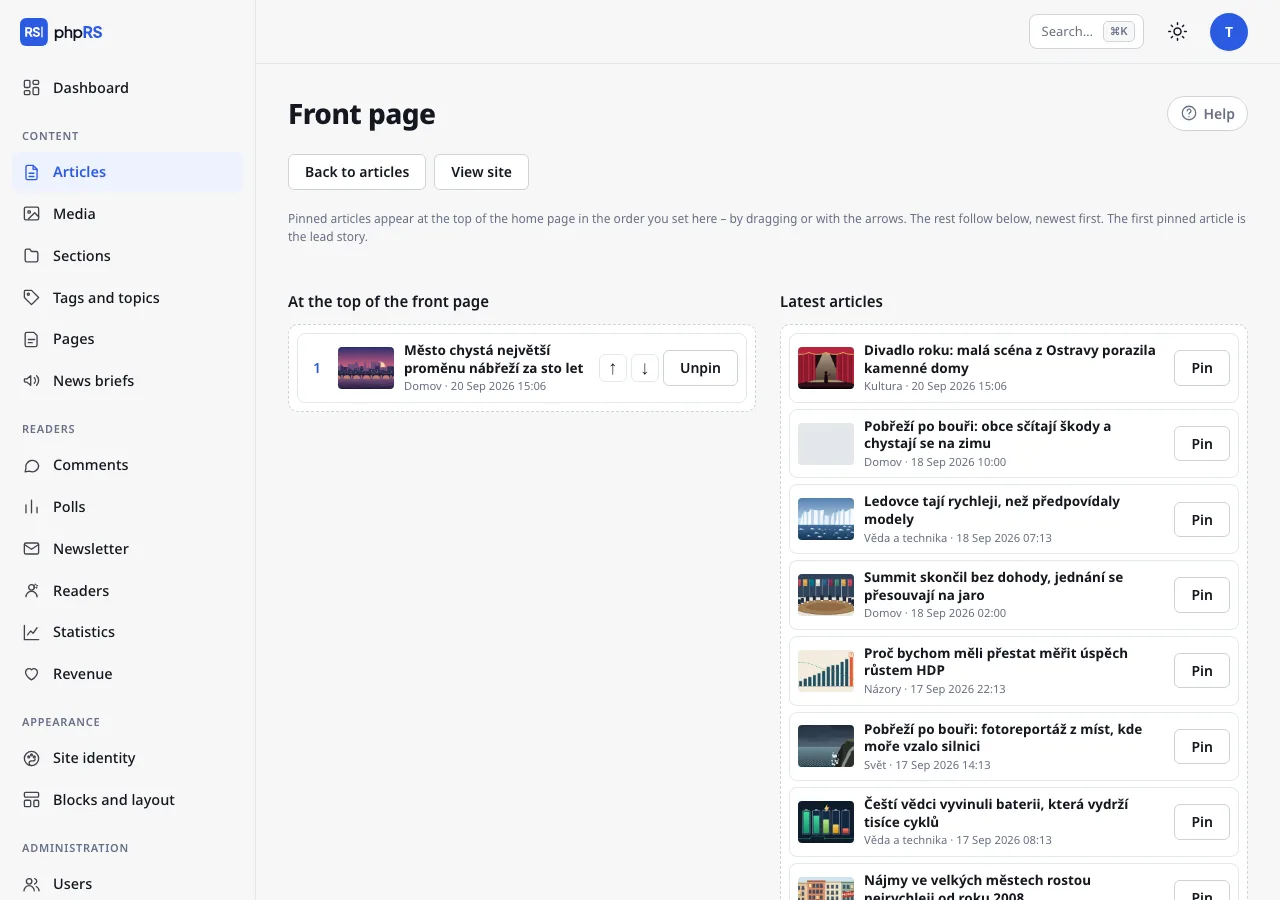
The home page of the site sorts articles from the newest. Pinned articles are above them, in the order set by the editorial team. Only someone who may publish decides about the front page; others do not see the Front page link.
Arranging the front page
- Open Content → Articles → Front page.
- On the left is the column At the top of the front page with the pinned articles, on the right Latest articles – the last 30 published articles that are shown on the home page. On a site with language versions the screen arranges only the default language; in the other languages pin articles with the option Pin to the top (lead story) directly on the article.
- You pin an article with the Pin button, or by dragging it into the left column. Unpin returns it among the others.
- You change the order of the pinned articles by dragging or with the arrows ↑ and ↓.
- Click Save the front page. You check the result with the View site link.
The first pinned article is the lead story. At most 30 articles can be pinned. The other articles follow below the pinned ones, from the newest.
Options right in the article
The same can be set on a smaller scale in the article form, in the Publishing → Home page panel:
- Show on the home page – when not ticked, the article is only in its section, in search and on tag pages. The option is on for a new article.
- Pin to the top (lead story) – pins the article without opening the Front page. An article pinned this way is placed below the articles ordered by hand on the Front page.
A pinned article has the mark pinned in the article list. Pinning does not end by itself – unpin the article once the story gets old. You set a date after which the article should disappear from the home page completely with the field Remove from the home page on (see Scheduling and revisions).
How many articles fit on the home page is determined by an administrator in Settings → General → Articles per page.
Editorial calendar
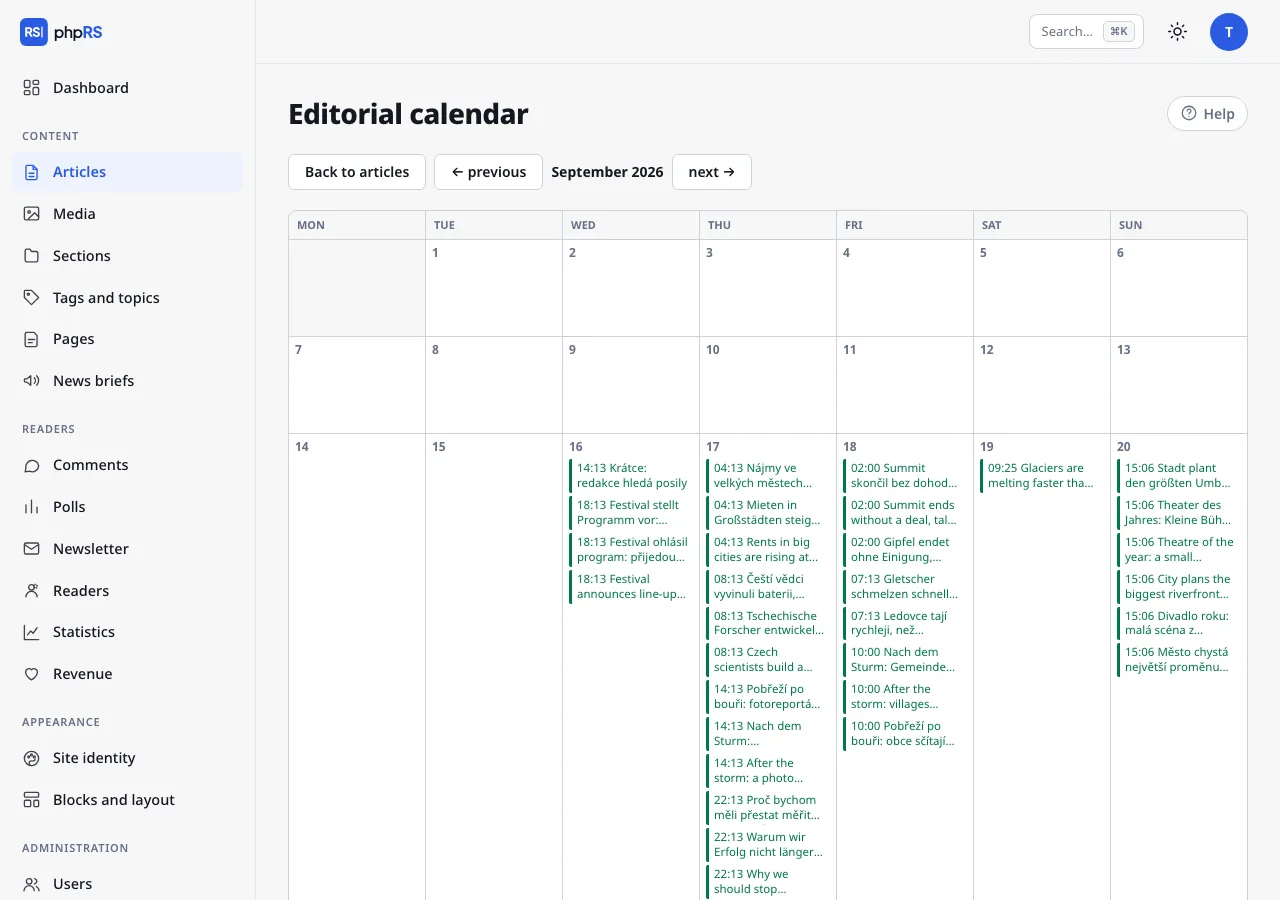
Content → Articles → Editorial calendar shows a monthly grid of articles by publish date.
- Every article is listed in the calendar with its time and headline. Clicking it opens its editor.
- Colours: published in green, scheduled in blue, drafts in orange, articles for review in purple (dashed line) and approved articles waiting to be published in purple (solid line).
- Today is highlighted. You move between months with the links ← previous and next →.
- The date of an article cannot be moved in the calendar – you change it when editing the article, in the Publish date field.
An author sees only their own articles in the calendar; a user restricted to sections sees only articles from their sections.
The calendar is also useful for planning ahead: create a draft with a working headline and a future date. It will be visible in the calendar in orange and will not appear on the site until someone publishes it.
Article list and bulk actions
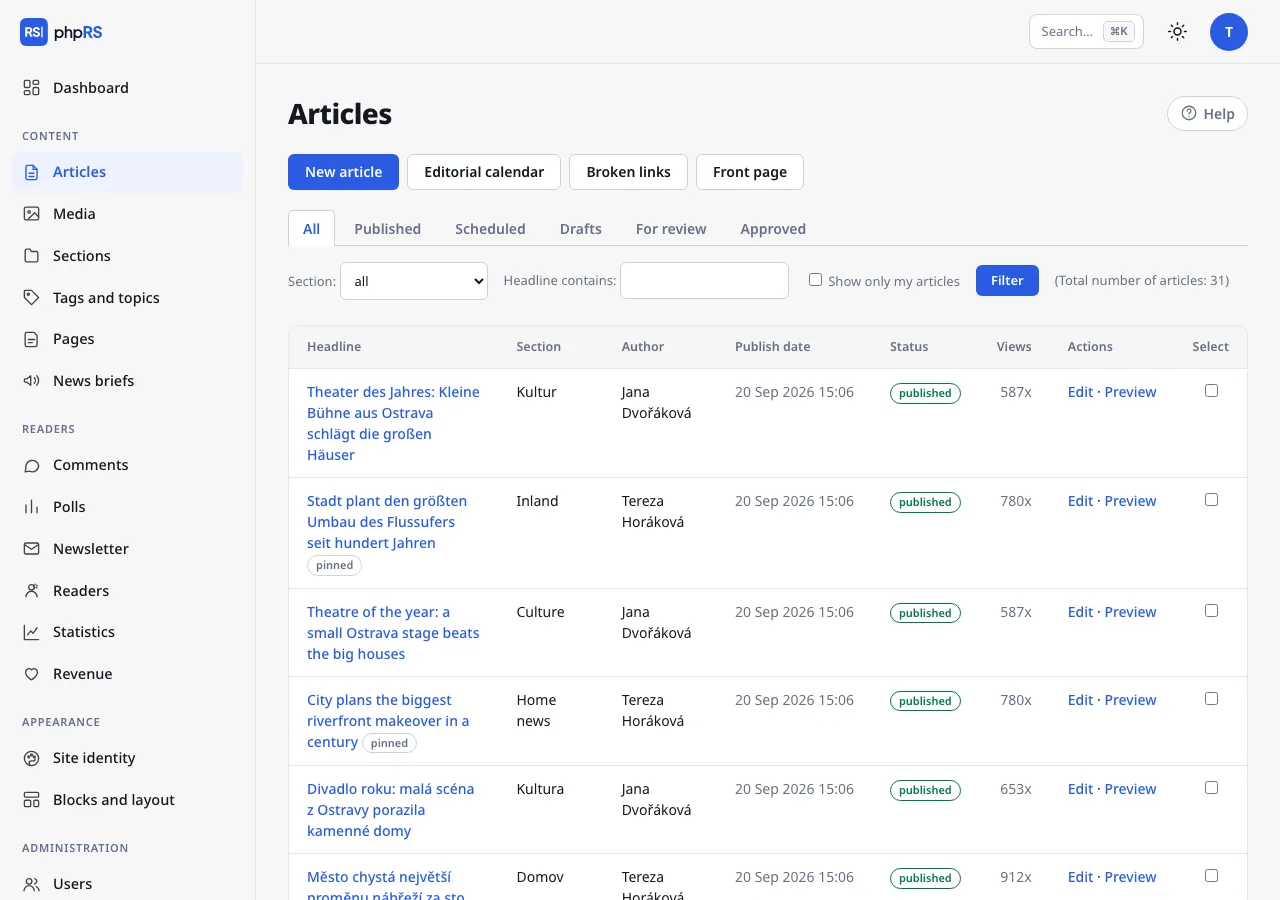
The list shows 20 articles per page. You narrow it down with the status tabs (All, Published, Scheduled, Drafts, For review, Approved), the Section: field, on a site with language versions the Language: field, the Headline contains: field and the option Show only my articles; confirm with the Filter button.
A bulk action:
- Tick the articles in the Select column.
- Below the table, in the With selected: menu, choose an action and fill in what it asks for (a section or a tag).
- Click Apply.
| Action | What it does |
|---|---|
| move to section… | moves the articles to the chosen section; a user restricted to sections can move them only to their own |
| add a tag… | adds a tag to the articles; creates an unknown tag |
| lock for signed-in readers | only signed-in readers can read the article |
| unlock for everyone | removes the lock |
Locking is offered only with the Readers and locked content extension turned on (Administration → Extensions).
The Delete selected button deletes the articles after confirmation. Deletion cannot be undone. Whoever does not have the right to publish cannot change or delete published articles in bulk – the system skips them and states the number of articles actually changed in its message.
Broken links
Content → Articles → Broken links. In the background the system goes through published articles – one every five minutes, each once a month – and tests whether the links in them still work. The screen shows the article, the link, the problem (for example page does not exist (404)) and the date it was found. After fixing a link, click Check again. The check can be turned off in Settings → General → More options → Look for broken links.
Command palette
The keyboard shortcut Ctrl+K (⌘K on a Mac) or the Search… field in the top right opens the command palette. When the cursor is in the article text, Ctrl+K inserts a link – open the palette with the Search… field then.
- Type the name of an area (sections), an action (new article, editorial calendar, front page) or a part of an article headline.
- Choose with the arrows ↑ ↓; Enter opens, Esc closes.
- Search also works without accents.
- An article that is found opens straight in the editor.
The palette offers only what you may access: areas according to your permissions and articles you may edit. An administrator also finds the individual Settings tabs in it.