Site identity
The Appearance → Site identity screen brings together what sets your site apart from other sites with the same template: the logo, the icon, the main colour, the fonts and dark mode. The settings carry over to all three built-in templates and survive swapping them. Only an administrator has access.
The form has the sections Template, Logo, Color, Dark mode, Font and Preview. Everything is saved at once with the Save button; the View site link next to it opens the site in a new window. Choosing a template is described on the page Site templates.
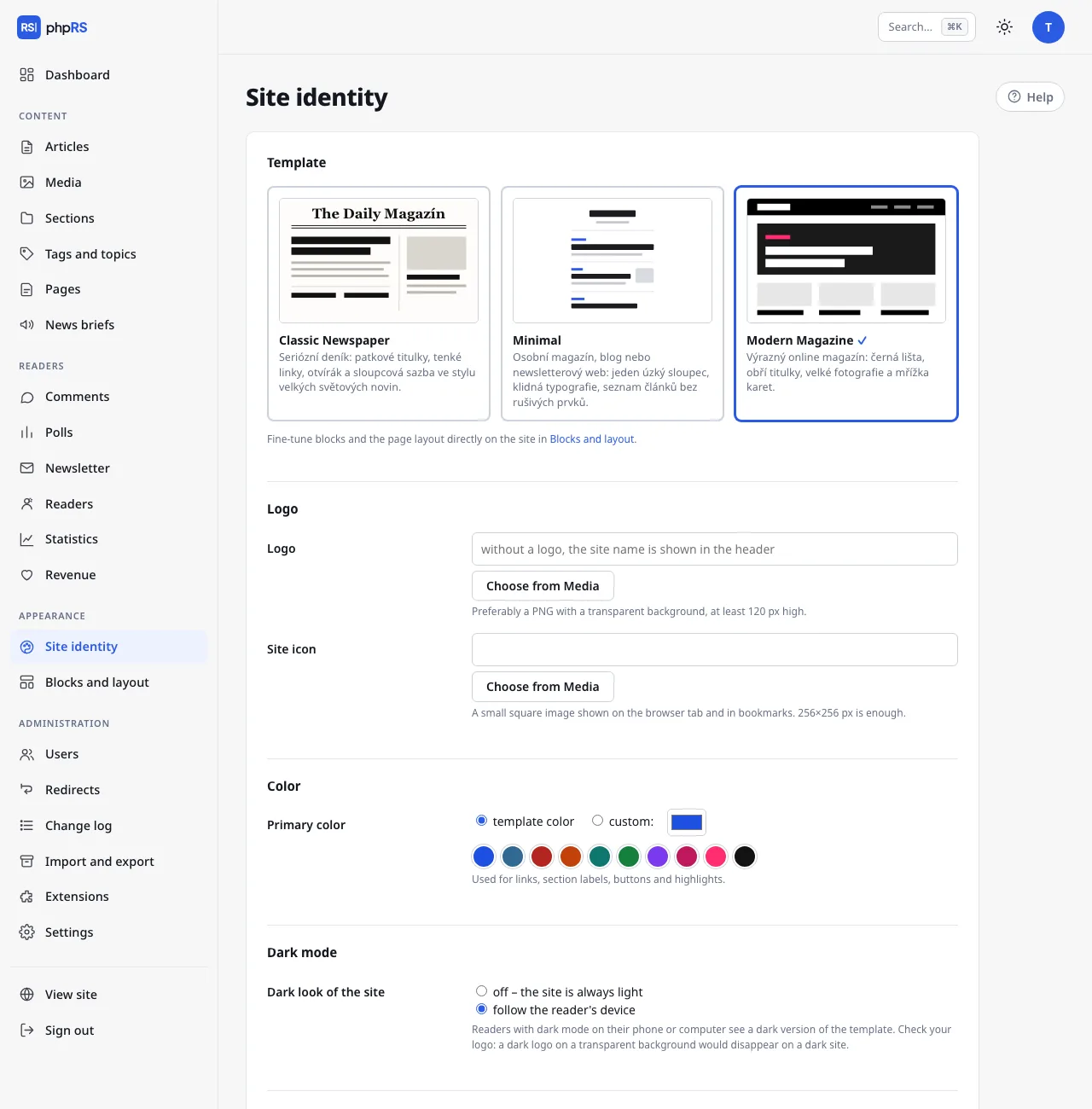
Logo and icon
| Field | What it is for |
|---|---|
| Logo | An image in the site header instead of the text name. Without a logo the header shows the site name. |
| Site icon | A small square image on the browser tab and in bookmarks. |
The procedure is the same for both fields:
- Click Choose from Media and select an image. If you do not have it in Media yet, upload it there first.
- A preview appears below the field. You can also type the image address into the field by hand.
- Click Save.
A PNG with a transparent background and a height of at least 120 px suits a logo best. For the icon a 256×256 px square is enough. You empty a field by deleting the address.
The site name, which is shown instead of the logo and also serves as its alternative text, is set in Settings → General.
Main colour
The main colour is used for links, section labels, buttons and highlights.
| Option | What it means |
|---|---|
| template color | The default. Every template uses its own colour. |
| custom: | A colour you choose. It applies to all templates. |
You choose a custom colour in two ways:
- by clicking one of the ten prepared shades (blue, newspaper blue, red, orange, emerald, green, violet, purple, magazine pink, black),
- with the colour picker field, where you mix any shade.
In both cases the option switches to custom: by itself.
Contrast check
The form continuously calculates the contrast of the chosen colour against a white background. If it is lower than 4.5 : 1, the warning Warning: this color is hard to read on a white background – choose a darker one. appears. The warning does not prevent saving, but links in such a colour will be hard for readers to read. This mostly concerns yellow, light green and light blue shades.
Font
Headings and article text have separate options.
Headings:
| Option | Character |
|---|---|
| From the template | the font the template comes with |
| Elegant serif | Bodoni, Didot – newspapers and fashion |
| Classic serif | Georgia – serious and easy to read |
| Book | Charter, Cambria – calm and literary |
| Modern sans-serif | the device's system font – clean and neutral |
| Bold grotesque | Helvetica, Arial – magazines and posters |
| Rounded | friendly, for lifestyle and family sites |
| Typewriter | technology, fanzines, diaries |
Article text: From the template, Serif (Georgia – comfortable for long reading), Book (Charter, Cambria), Sans-serif (the device's system font) and Grotesque (Helvetica, Arial).
All fonts are system fonts. Nothing is downloaded from third-party servers, so the site stays fast and does not need the visitor's consent because of fonts. It also means that the exact shape of the type differs slightly between devices: the reader sees the first font of the set that is installed on their device. Custom font files cannot be uploaded.
Dark mode
| Option | Behaviour |
|---|---|
| off – the site is always light | The default. |
| follow the reader's device | A reader who has dark mode turned on in their phone or computer sees the dark version of the template. Others see the light one. |
Dark mode is automatic. There is no switch on the site with which readers could turn it on or off themselves – the setting of their device decides. All three built-in templates have a dark version.
Check the logo before turning it on. A dark logo on a transparent background would be lost on a dark site; use a variant that is legible on both a light and a dark background.
This setting concerns the site only. Each user switches the light and dark look of the administration themselves at the top right.
Preview
The Preview section shows a section label, a headline, a paragraph with a link and a button in the chosen colour and fonts. It changes immediately with every choice, even before saving. It is indicative – you see the real result on the site after saving.