Newsletter
A newsletter is an e-mail with a selection of articles that you send to subscribers who have signed up. You put it together by hand, or let it go out automatically. Everything runs on your site, without a third-party mailing service.
Turning it on
- Open Administration → Extensions, tick Newsletter and save.
- In Settings → General fill in the Newsroom e-mail – the newsletter is sent from it. Without it the Newsletter screen reports First fill in the Newsroom e-mail in Settings – the newsletter is sent from it.
- Add the Newsletter block to the site (Appearance → Blocks and layout). It is the sign-up form for readers.
- Set up sending through SMTP. Bulk messages sent by the server's mail function often end up in spam. See Mail.
The Readers → Newsletter area is accessible to an administrator and an editor.
Subscribing
Signing up has two steps (double opt-in):
- The reader enters an e-mail in the Newsletter block. The site answers: We have sent you an e-mail – confirm your subscription by clicking the link in it.
- The reader clicks the link in the e-mail. Only then do they become a subscriber.
Without confirmation they receive nothing. This gives you proof that the address was signed up by its owner. The site answers the same way even to someone who already is a subscriber, so it does not reveal which addresses are on the list. At most five sign-ups an hour get through from one IP address; the form is also guarded by the protection against robots.
A subscription can also be chosen during reader registration by ticking I want to receive the newsletter. It is confirmed by the same link as the registration.
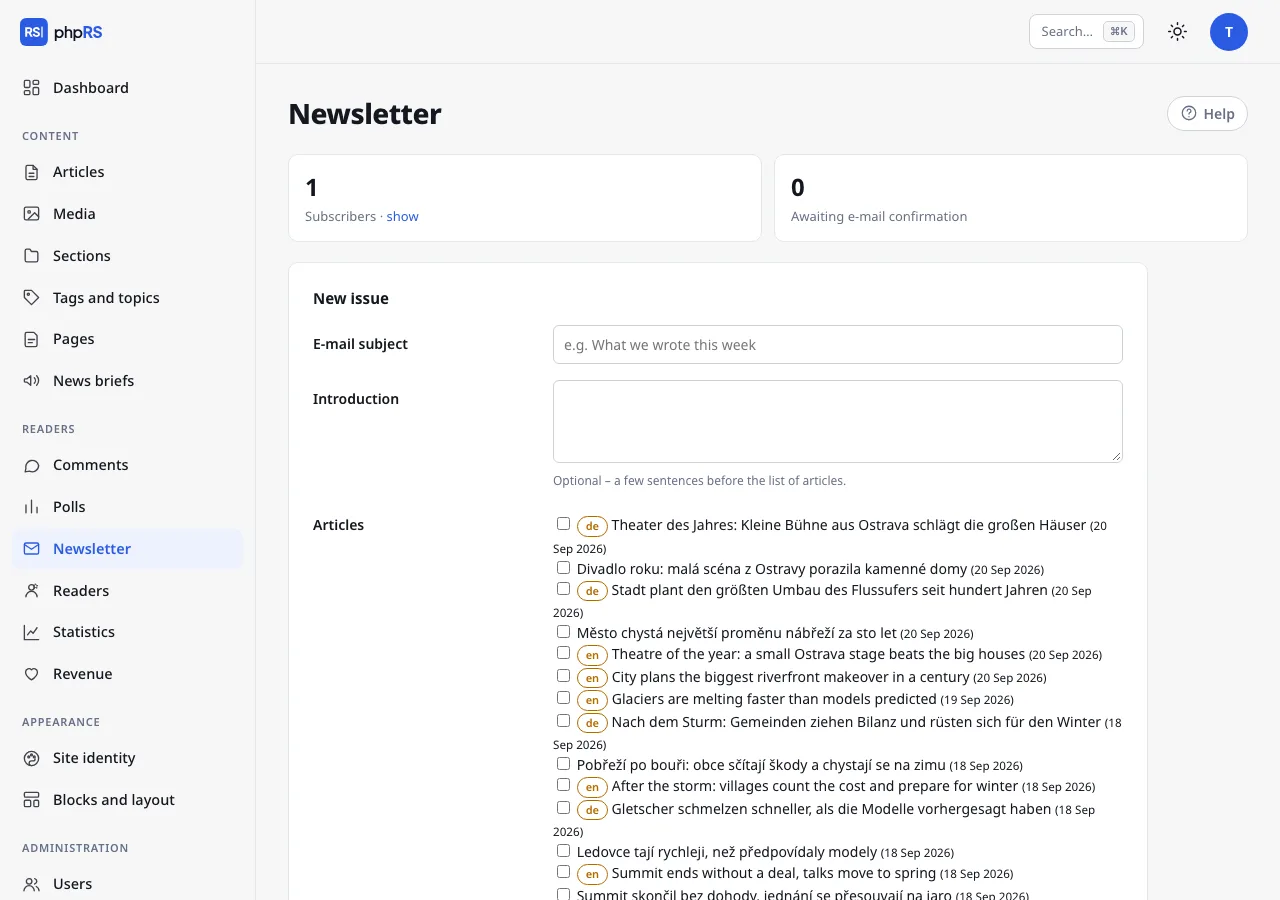
At the top, the Newsletter screen shows the number of confirmed subscribers and the number of those Awaiting e-mail confirmation. The show link opens the Subscribers list (the last 500) with the Delete and Download CSV buttons.
A manual issue
- Open Readers → Newsletter, the section New issue.
- Fill in the E-mail subject and possibly the Introduction – a few sentences before the list of articles.
- In the Articles field tick what you want to send, at most 20 articles. The last 15 published articles are on offer; those published since the last newsletter are preselected.
- Click Send a test to the newsroom. The message arrives at the Newsroom e-mail. Check it in a mail program and on a phone. The form is emptied in the process, so fill it in again afterwards.
- Click Send to subscribers and confirm.
The e-mail contains the introduction and, for every article, the headline, the standfirst and the link Read article →; the first three articles also have an image. It has a plain-text version too. The full text of articles is not sent, so locked articles stay locked.
Sending progress
Sending goes in batches of 40 recipients. After confirmation the Newsletter delivery page opens with the running status – sent and remaining. Keep the page open; it refreshes by itself until everyone has been served – if it does not refresh, click Continue. At the end it reports Done.
If you close the page earlier, the sending stops. Nothing is lost or sent twice: in the Sent issues table click continue sending next to the issue.
Scheduling
Expand Schedule for later, enter Send at and click Schedule. A scheduled issue is sent by itself in the background; you do not need to have the administration open. Until the sending has started, you cancel it in the table with the Cancel button.
Automatic newsletter
Expand the section Automatic newsletter:
| Field | Options |
|---|---|
| Send automatically | no – I put the newsletter together myself (the default) · once a week · every day |
| Day and hour | the day of the week applies only to the weekly newsletter; hour 0–23; the default is Friday at 7 o'clock |
| Introduction | an optional standing text, at most 1000 characters |
The automatic newsletter picks up to eight articles published since the last newsletter – pinned and most read first. It does not include briefs or articles excluded from search engines. It composes the subject from the headline of the first article and the site name. When nothing new has been published or there is nobody to write to, nothing is sent. In the table of issues it has the label automatic.
Background jobs
Automatic and scheduled issues are sent by background jobs, one batch of 40 recipients on every run. By default the jobs are run on visits to the site. The newsletter therefore goes out on the first visit after the set hour, and on a site with little traffic the sending drags on. For an exact time and smooth sending set up cron – see Background jobs.
A message that could not be sent (for example during an SMTP outage) stays in the mail queue and the background jobs try to send it again. The log of sent messages and errors is in Settings → Mail.
Language versions
On a multilingual site every language has its own subscribers – a reader signs up to the version on which they filled in the form. An issue is always in one language:
- for a manual issue, select articles of one language version only (30 of them are on offer and they carry a language label); it goes to the subscribers of the same version,
- the automatic newsletter creates a separate issue for every language from its articles; the introduction is added only to the issue in the default language,
- the texts of the e-mail (the link to the article, the footer, unsubscribing) are in the language of the issue.
Issue statistics
The Sent issues table shows the last 30 issues: Recipients, Opened (also as a percentage) and Clicks. These are aggregate numbers; nothing is tracked for individual subscribers. Opens are indicative: some mail programs do not load images, others load them by themselves.
Unsubscribing
Every message has an Unsubscribe link in the footer and carries the headers for one-click unsubscribing that mail services display. Unsubscribing is immediate and needs no sign-in: the address is deleted from the list and the site confirms it with the message Subscription cancelled.
You can also remove a subscriber yourself in the Subscribers list, or together with the reader's other data in Settings → Privacy and cookies (see Reader accounts).