The site sends newsletter subscription and reader registration confirmations, links for setting a password, newsletters, comment notifications and newsroom notifications. Everything is set in Settings → Mail.
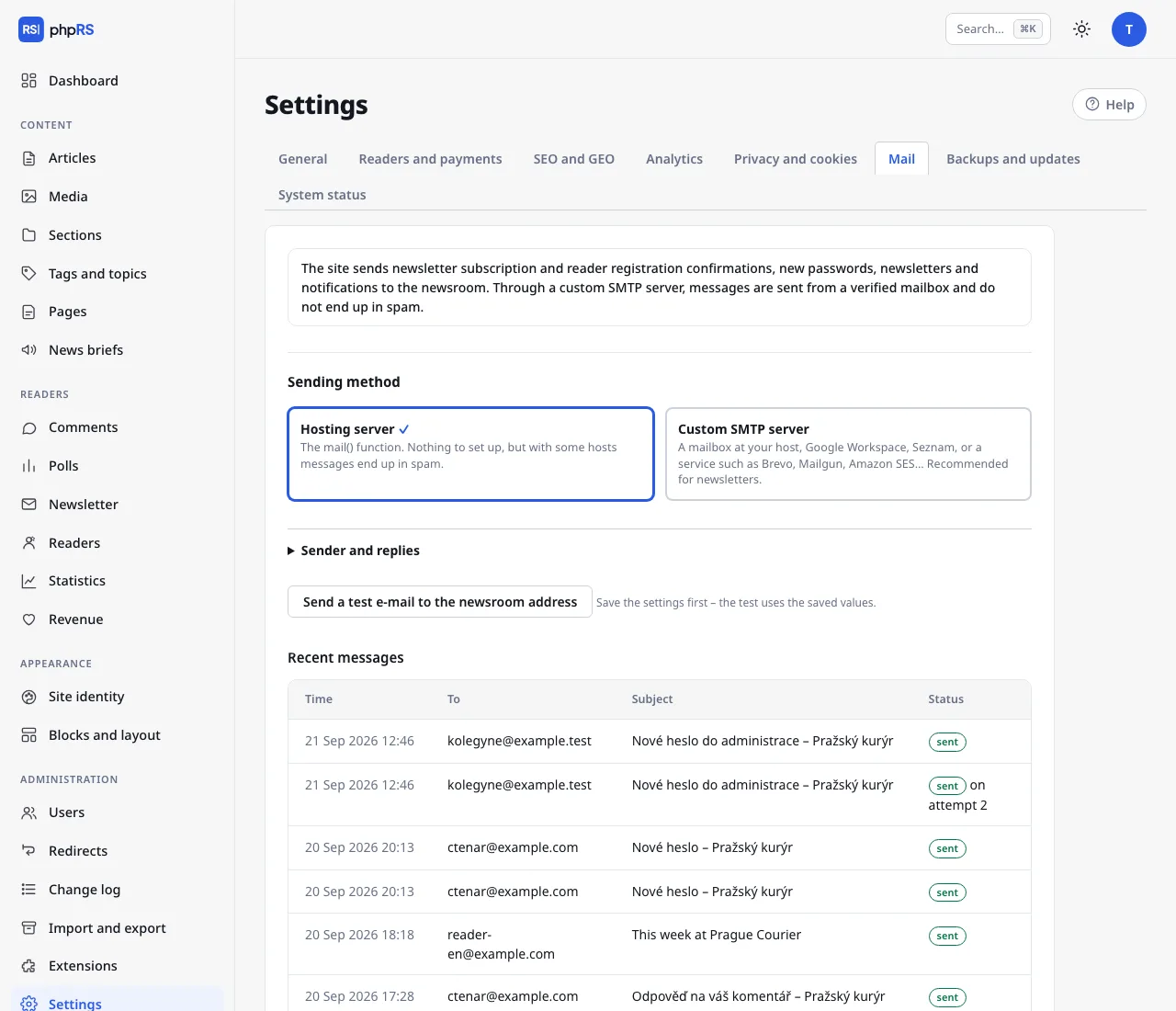
Sending method
| Method | When to use it |
|---|---|
| Hosting server | Works immediately, nothing to set up. On many hosting services, however, the messages end up in spam. Enough for a small site without a newsletter. |
| Custom SMTP server | Messages are sent from a verified mailbox. Recommended whenever you send a newsletter or register readers. |
SMTP settings
You get the details from your mailbox provider – your hosting, Google Workspace, another e-mail provider or a bulk mail service (Brevo, Mailgun, Amazon SES…).
In the SMTP server section fill in:
- Server address – for example
smtp.example.com. - Security – STARTTLS, port 587 is the most common; SSL/TLS, port 465 with older services. Use the “none” option only for a server on your own network.
- Port – default 587. The security option does not change it by itself: with SSL/TLS overwrite it with 465.
- User name (usually the full e-mail address of the mailbox) and Password – with Gmail and similar providers enter an “app password”, not your account password. The password is stored only on your site and is never displayed in the form again; an empty field means “no change”.
After saving, click Send a test e-mail to the newsroom address. The test uses the saved values, so save first and test afterwards.
Sender and replies
Expand Sender and replies: Sender address is the address shown as the sender of messages (an empty field = the newsroom e-mail), Send replies to is the address for replies. The sender address should belong to a domain your SMTP server is allowed to send from – otherwise messages end up in spam or the recipient rejects them.
Keeping mail out of spam
For the sender domain, set up SPF and DKIM records in DNS according to your mail provider's instructions, and ideally DMARC as well. Without them, large providers (Gmail, Outlook) limit or reject bulk mail.
Queue and retries
A message that cannot be sent is not discarded: the system tries again after 5 minutes, 30 minutes, 2 hours and 12 hours. The retries are handled by background jobs. The Recent messages overview shows the time, recipient, subject and status (sent, waiting for the next attempt, not sent). Message content is not kept and the records are deleted after 30 days.
Most common problems
- The test e-mail did not arrive – look at the Recent messages overview. The status not sent means a connection or sign-in error; sent means the server accepted the message and you need to look in the recipient's spam folder.
- Signing in to SMTP fails – check that you are using an app password and the right combination of port and security.
- The hosting blocks outgoing connections – some shared hosting services allow SMTP only to their own servers. Use a mailbox at the same hosting.