Images, galleries and attachments
All uploaded files are in one place: Content → Media. Everyone who signs in to the administration has access to Media. However, only the person who uploaded a file, and an administrator, may change its description or delete it.
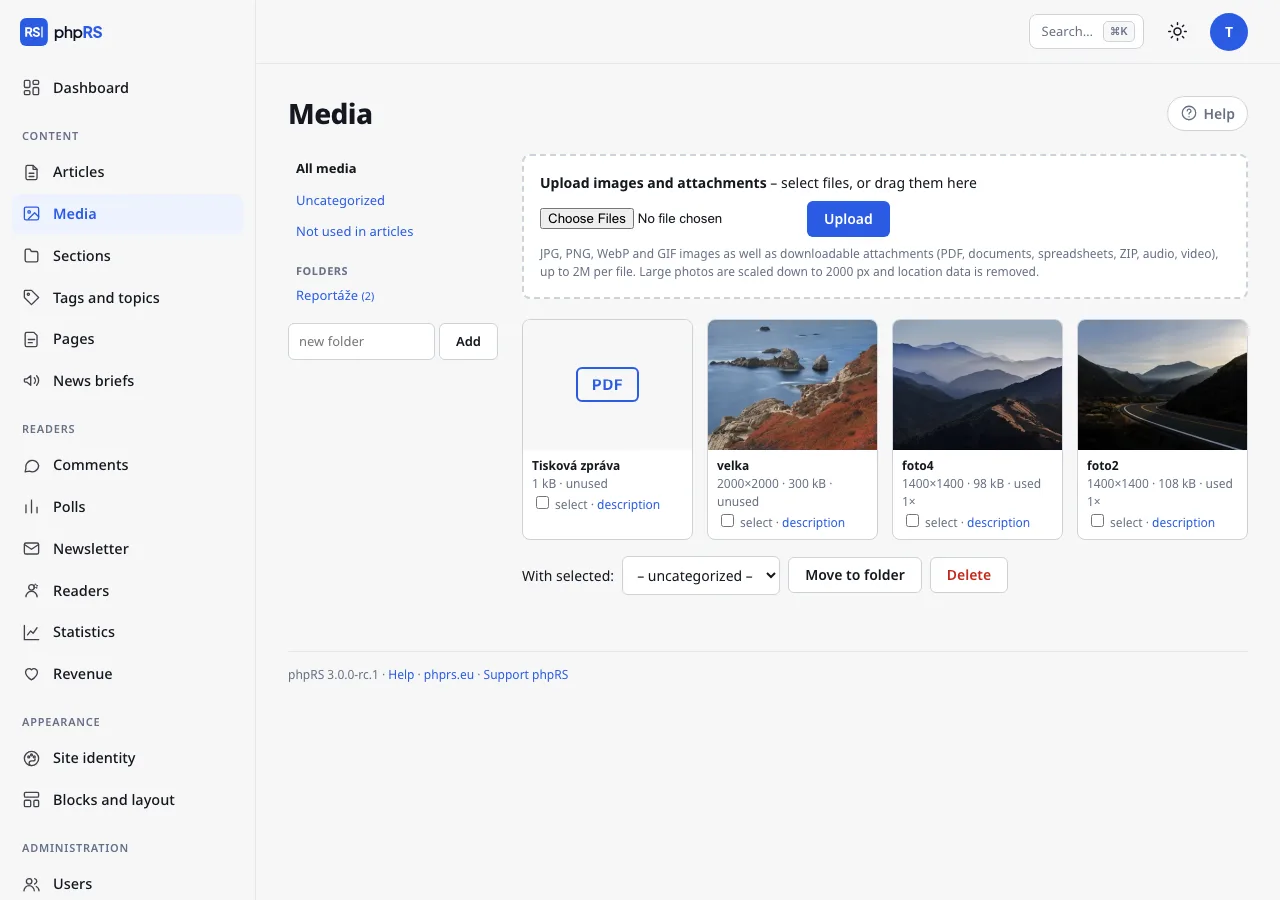
Uploading
You can upload files in three ways:
- in Media with the Upload images and attachments form – choose the files, or drag them into the form with the mouse,
- in the editor, in the Media window, with the Upload new button or by dragging files into the window; on a phone or tablet there is also a Take a photo button,
- by dragging an image, or pasting it from the clipboard, straight into the article text – it is uploaded and inserted at the cursor position.
You can upload at most 30 files at once.
The same form uploads attachments too (PDF, documents, audio…); in the editor use the Upload new button.
Formats and limits
| What | Limit |
|---|---|
| Images | JPG, PNG, WebP and GIF; at most 20 MB and 50 megapixels |
| Attachments | at most 200 MB |
| Every file | at most as much as the server allows – the value is shown in the hint below the form in Media |
Allowed attachments: pdf, doc, docx, xls, xlsx, ppt, pptx, odt, ods, odp, rtf, txt, csv, zip, epub, gpx, ics, mp3, m4a, ogg, wav, mp4, webm. HTML, SVG and scripts cannot be uploaded.
What happens to an image
- A photograph larger than 2000 px is reduced by itself to 2000 px on the longer side.
- The image is saved again, so camera data including the location disappear from it. A photo from a phone is rotated correctly in the process.
- A medium variant (1200 px) and a thumbnail (640 px) are created. The site then sends the reader the size that suits their screen.
- A copy in the WebP format is created for every variant. The server serves it by itself to browsers that support WebP – nothing changes in the article.
- A GIF file is stored unchanged, so that the animation is preserved.
The name of the image is taken from the file name. So give your files clear names before uploading.
Folders
The left column of Media holds the filters All media, Uncategorized and Not used in articles, and the folders below them.
- You create a new folder with the new folder field and the Add button.
- Once a folder is open, files are uploaded straight into it. A folder can be renamed with Rename; Delete folder is reserved for an administrator.
- To move files, select them, choose the target folder at the bottom and click Move to folder.
Deleting a folder does not delete the files – they move among the uncategorized ones.
Image description (alternative text)
Click description next to an image. A form with two fields opens:
- Name (alternative text) – what is in the image. Screen readers and search engines read it. When the image is inserted into an article, it becomes the alternative text.
- Caption below the image – shown below the image when it is inserted into an article.
Both values are carried into the article at the moment of insertion. A later change in Media no longer changes images that are already inserted. You add a missing alternative text right in the editor, in the Accessibility check panel.
Inserting an image into an article
- Place the cursor where the image belongs.
- Click image in the toolbar. The Media window opens.
- At the top choose All media, In this article, Unsorted or one of the folders. The window loads the 60 newest files of the chosen selection; the Load more button below the grid adds more. The Search media… field next to the selection finds files by title, caption or file name.
- Click the image – it is inserted together with its caption.
Readers enlarge an image in an article by clicking it.
Featured image
In the Featured image panel click Choose from Media, or paste the address of an image into the field. The featured image is used in listings and when the article is shared on social networks. The link Media used in this article below the field opens Media with only the files of this article.
Photo gallery
- Click gallery in the toolbar.
- Click the photos to select them in the order in which they should follow each other. You need at least two.
- Confirm with the Insert gallery button.
In the article the gallery is shown as a grid. Readers browse the photos in full screen.
Attachments for download
You insert an attachment the same way as an image – with the image button. In the Media window, files are marked with their extension. A link with the file name, type and size is inserted into the text, for example (PDF, 1.2 MB).
The browser offers documents, spreadsheets, presentations, ZIP archives and EPUB, GPX and ICS files to the reader for download. PDF, audio and video usually open right in the browser. Files in the media/ folder are never executed on the server.
Deleting
Select the files and click Delete. For every file you see how many times it is used (used 2× / unused).
Related
- Article editor
- Content types – the Photo story template, podcast and video